With an on-going threat of tariffs coming to the United States, and the trade war being as flip-floppy as possible right now, before 2024 ended, I bought about $800 worth of computer parts to work on my next pet project: a data vault.
My wife and I have a lot of photos, and frankly it's upsetting to think that photo, video and other media storage is largely an unsolved space. I run a personal Nextcloud instance, and even that has issues that I'm not totally happy about. The problem with Nextcloud is that the app user experiences are almost always terrible, and I can't go anywhere off WiFi without Nextcloud trying to back up my entire photo album over mobile data. I played with the settings, and couldn't find a happy ground where Nextcloud wouldn't upload gigabytes of photos on mobile data.
Nextcloud would be the most obvious place to start; we have different brands of smartphones, and are unlikely to ever want to pay the premiums for common bigtech cloud storage solutions, like Google or Apple or shudder Dropbox. A year or two ago I compared the different plans that cloud hosting had, and here's an up-to-date look at various cheap plans.
- Google Drive - $2/mo for 100GB of storage
- Apple iCloud - $0.99/mo for 50GB
- Dropbox - $9.99/mo for 2TB of storage
Google and Apple are neck to neck to try and out-do each other, while Dropbox only offers a 2TB plan. Google and Apple also have 2TB plans for the same price, but definitely cater to an audience that may or may not want to commit to a whole two terabytes of data. Apple charging 99 cents I'm sure is what a large percentage of users are already subscribed to and think very little about handing over a dollar a month.
However, compared to just buying an SSD, you get a lot more value. Running your own SSDs for storage comes with complex software problems, which is why almost nobody might ever go down this road in the first place. But I have a renewed interest in using my skills to save money and protect our personal data as a priority. While you get benefits of having cloud data, there are also negatives, like:
- Google/Apple/etc using your photos for AI training without your consent
- Providers losing your files or downgrading their file quality to lower resolutions
- Providers increasing their pricing, giving you zero negotiation power
- Providers failing to give you responsible security (Celebrity Leak circa 2014)
Having instantaneous access to your entire collection of memories and files is a boon for many people, but having them always-online comes with certain trade-offs too. Hosting your files locally comes with benefits, and also has trade-offs. There is no scenario where something is just good and has zero downsides here, and that sucks.
I have technical abilities, and an interest in protecting and archiving our data for as long as possible with minimal complexity. Therefore, I bought my pet project that I simply call the Data Vault.
Requirements and Parts
I have built computers, but I've never built tiny computers. The thought of building tiny computers is a freaking nightmare. If you've ever built giant computers, think of how much space you have to wiggle your hands and get into uncomfortable spaces. Isn't it nice having room to be able to fit cables without fear of scraping your hands or having to take everything out and start over?
Well, that's what you don't get with tiny computers.
I have two desktop computers, and I didn't need a third one to take up more space. I wanted to build a Mini-ITX build to take up as little space as possible. One could argue that you can also achieve similar solutions using Raspberry Pi NAS clusters, but in my experience, RPIs are not the greatest when it comes to building something like this. You can do it, but getting the drives to be connected and performant is different, because RPIs natively don't come with PCI-e ports for something like NVMe drives or even SATA ports for 2.5 drives.
Originally, I didn't want to buy the parts for this until a little bit later, but because of the threat of tariffs, I bought hardware before it would get a little overpriced. The tariffs have yet to come into play in the U.S. markets at time of writing, but I think I'll be glad that I bought it sooner rather than later.
Now, I have interest in keeping this server of mine as low power as possible as to not add to the array of devices I have consuming power. I want to keep it as low as possible, within human limits. I would like to get around 1 to 2TB of storage, because storage prices are still a little crazy and I'd rather buy as we grow instead of trying to collectively buy 30TB of unneeded space.
In the end, here's what I went with.
- AMD Ryzen 7 8700G 8-Core 4.2 Ghz 65W CPU
- Gigabyte A620I AX AM5 Mini-ITX Motherboard
- Corsair Vengeance 32GB DDR5 RAM
- Crucial P3 Plus 1TB PCI-e NVMe
- Silverstone SFX 300W 80+ Bronze PSU
- Matching Silverstone Mini-ITX case
In total it cost me roughly $779 to put this all together. I ended up getting an extra SSD from Christmas soon after, because I don't really know what else to ask for in Secret Santas, so I figured why not something useful? I can't keep getting Raspberry Pis for Christmas.
After the Black Friday / Cyber Monday weekend sprint of running numbers and making sure all the parts worked, I clicked my order, and had so many fears of nothing fitting at all. After roughly two weeks, everything came in, and then my work began putting it all together.
Build
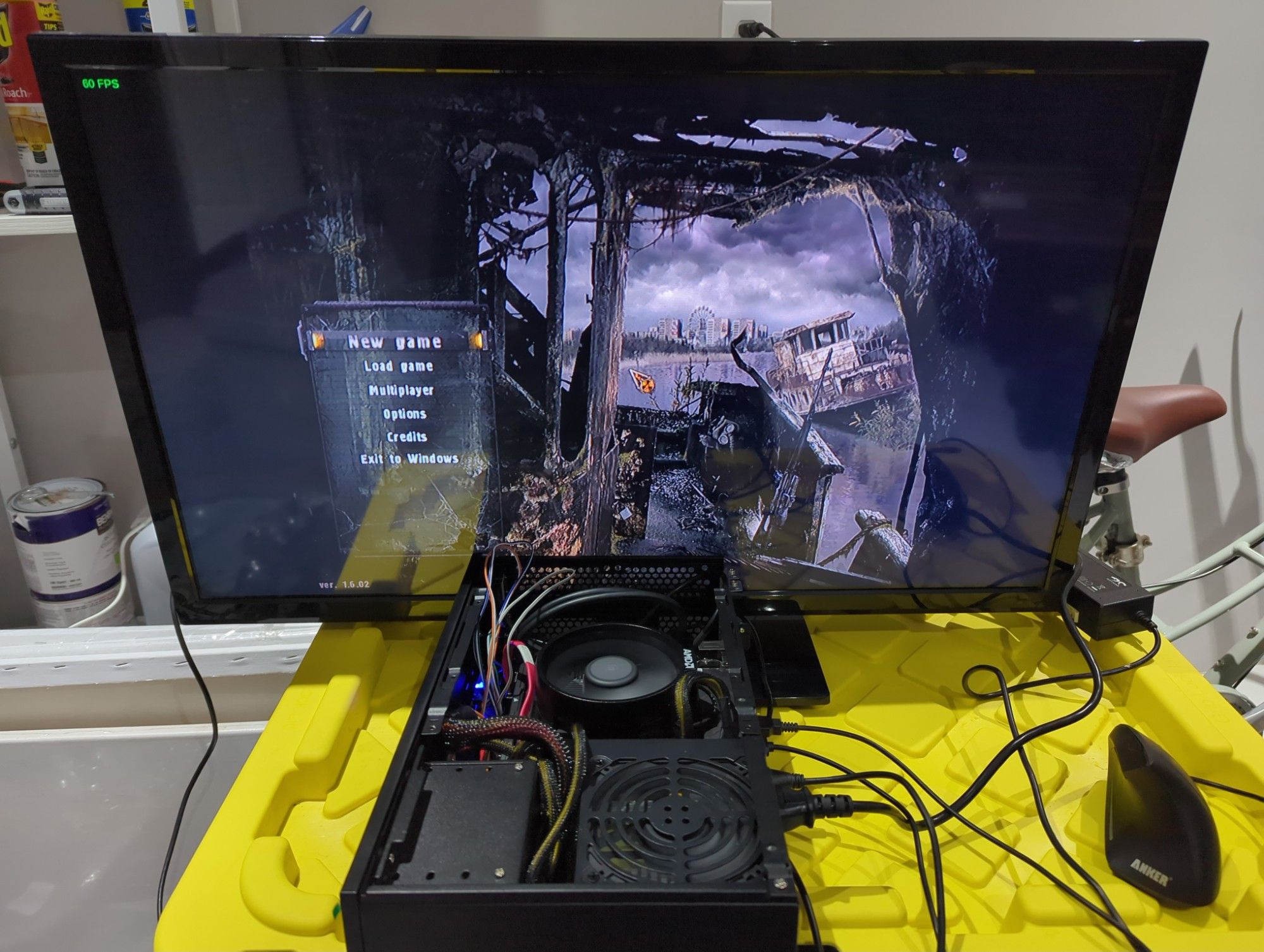
Truth be told, the build wasn't without some pains. On the outside, it was a pretty trivial setup. Take out the motherboard, put in the RAM, CPU, NVMe drive, throw on the stock cooler, open up the case, slap in the board and PSU, close it up and turn it on. There was a good enough amount of space for it all to fit, but some components had to be completely removed from the inside. The case came with a top-mounted fan, but it conflicted with the CPU cooler, so I removed that case fan, which thankfully was modular and easy to take out.
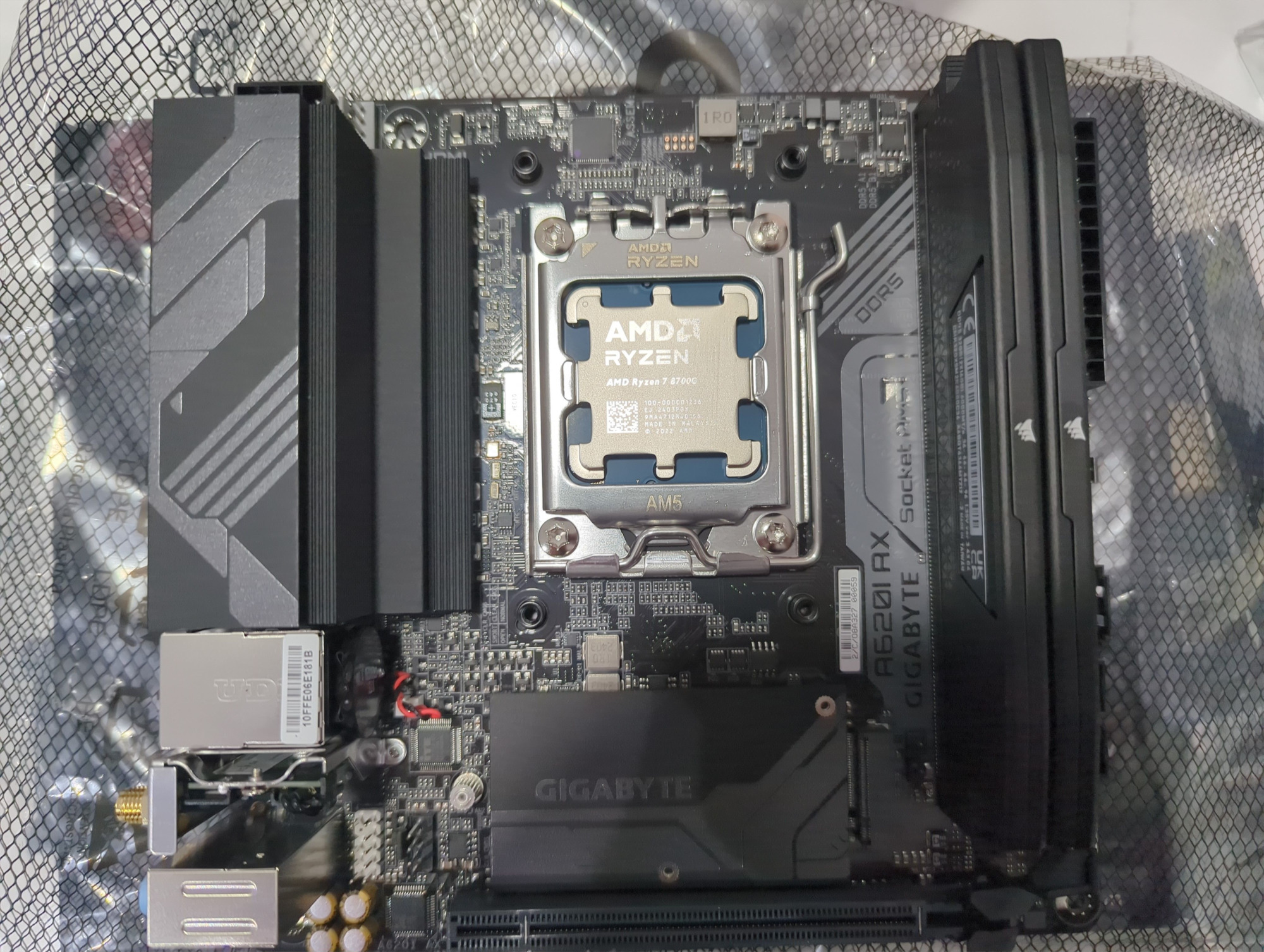
However, the wiring and tight spaces soon started being a hassle. My PSU wasn't actually modular, which is my fault, but I was working with tight margins anyway. I didn't buy a video card, and I opted for an on-chip integrated graphics stack with the 8700G, which has honestly pretty good performance (more on that later). The PSU came with extra cabling I didn't terribly need, like molex connectors that just wouldn't be doing anything. So I sort of had to tuck them out of the way as best as possible. And that's already on top of me bending the CPU power connector as best I can and other wires to fit the tiny case design.
Sticking in another hard drive was way too difficult. There's a small box case in the corner meant to hold 2.5" drives, and sticking the extra drive in there and then putting the cabling in from that to the motherboard and the power connector was really tiring. I knew what I was getting into, but I was seriously looking to avoid having to take out the motherboard and start from an empty space.
Once everything was finally in, I was very ready to throw the power switch on and see what it is capa- oh... It doesn't turn on.
I ripped open the case top and started doing electrical debugging where I could. I spent a few hours looking at the manual to be sure I had pinned the power and reset buttons correctly along with the other pins for HDD light (who uses this?) and such. Frustratingly, the power button just wouldn't do anything.
I detached the main CPU power connector and did things the annoying way: putting in a jumper cable into the power pin of the connector itself. This is a method to test if the CPU can be turned on at all by connecting the main power-on pin to a ground and seeing if the power button can close a circuit or not. By routing the pin to ground, it will turn on when you hit the switch on the PSU instead of a power button.
My electrical engineer friend helped me debug the issues. First we wanted to make sure the PSU was working, so we routed the power on pin to the ground and flipped the switch. The PSU fan was indeed working. The next issue would be to figure out why the CPU isn't kicking on to boot. For that, we poked around with a multimeter and figured out why: the power button isn't working.
The wires are glued to the button switches on the front of the case. The reset button was working, but the power button was not. They were seemingly hot-glued in place, but maybe that messed up the connection. I didn't particularly feel like un-gluing it and soldering the circuit back to work, so instead I wired the power on switch to be the reset button instead. I'll probably never notice anyway.
After that, it turns on and boots to BIOS. I want to get testing, so I pick the most generic operating system I can, Linux Mint, to be the test OS. I burned it to a flash drive, plugged it in, installed, and it's fully functional. Hooray no part failures.
Performance
In the first few days with the device, I wanted to make sure everything was pretty battle ready. I wanted to make sure the hard drive could store files, the memory was working, and the CPU was relatively in a good state. To do this, I downloaded video games.
This section will probably be uninteresting for people invested in building data servers for local use, but as a fellow gamer and computer scientist, I was really interested in seeing just how far this computer can go in intensive workloads. This CPU is only rated to draw 65 Watts, so what damage can it really do?
Half-Life 1
The hit shooter from 1998, built upon Gold Engine, obviously runs fine. I would argue that when this game came out, this was the only game that ran flawlessly on widely available hardware. You could probably install this on a work computer in 1998 and play it at a very high FPS. Gone are those days of work computers having Unreal Tournament.
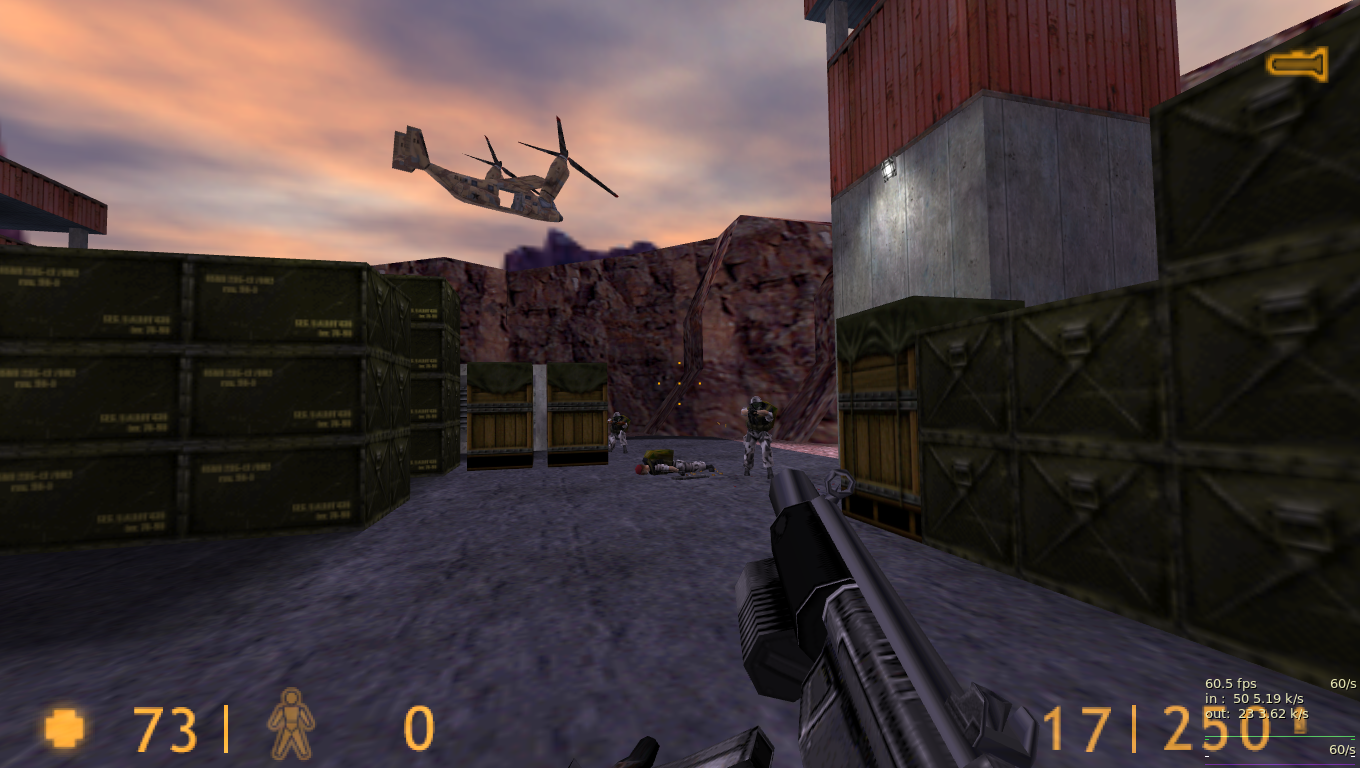
I couldn't get MangoHud to work here or on other Half-Life titles (maybe due to missing lib32 packages), so net_graph 1 it is. For a game this old, it's as cranked out as it can be. I'd be afraid to let it go off the frame limiter.
Quake 1
Quake 1 is a classic boomer shooter alongside Half-Life 1, and between id Software and Valve, they shared many common principles for FPS development at the time. Half-Life 1 is even a port of the the Quake engine, if you can believe it.
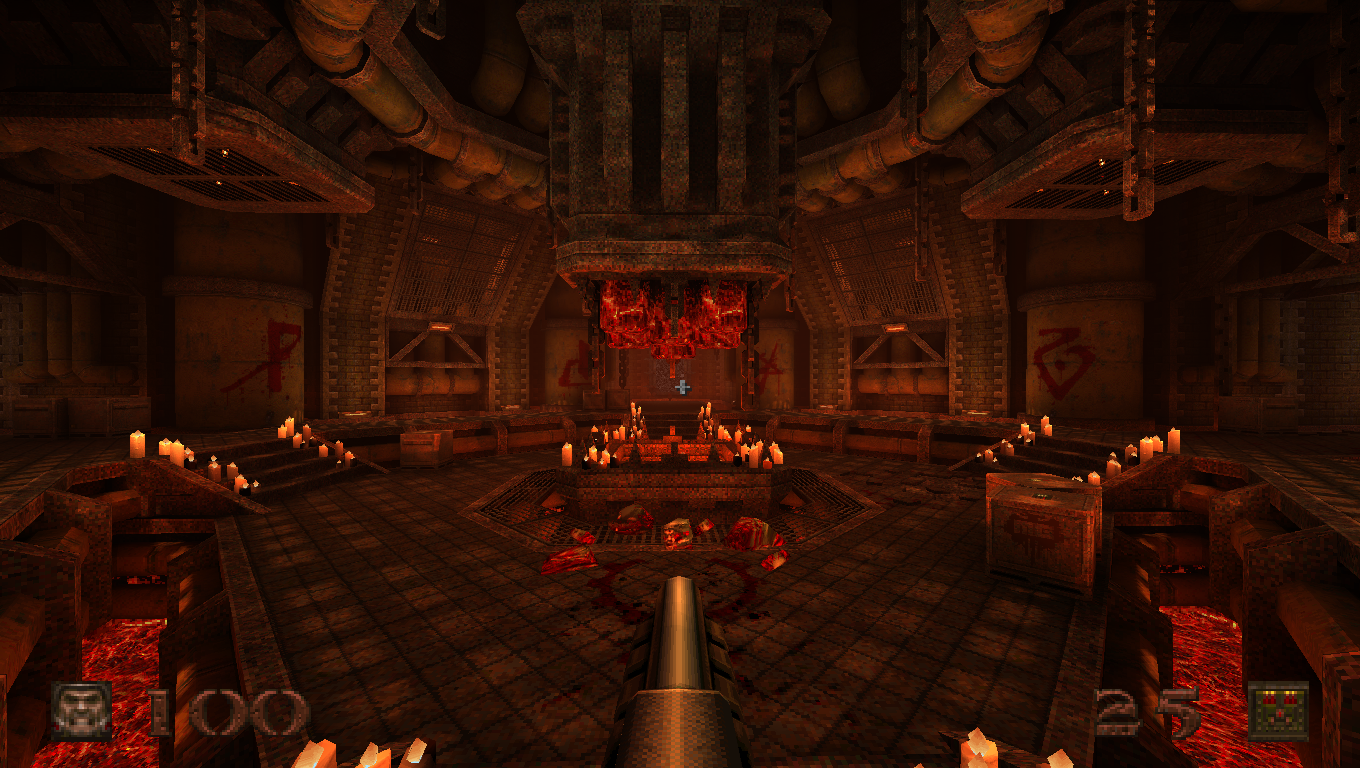
Quake 1 got a new rendering engine some years back to use Vulkan, and the game certainly looks a lot better than it's olden days of software rendering. As such, game is flawless and runs perfectly fine.
Half-Life 2
Skipping ahead just a few years, Half-Life 2 shows up in 2004 and barely runs on anyone's computer. I wanted this game day one and it barely ran, but I was also a kid who didn't exactly have money for new hardware. How does Half-Life 2 fare now after it's 20th anniversary and new code patches that Valve deployed?
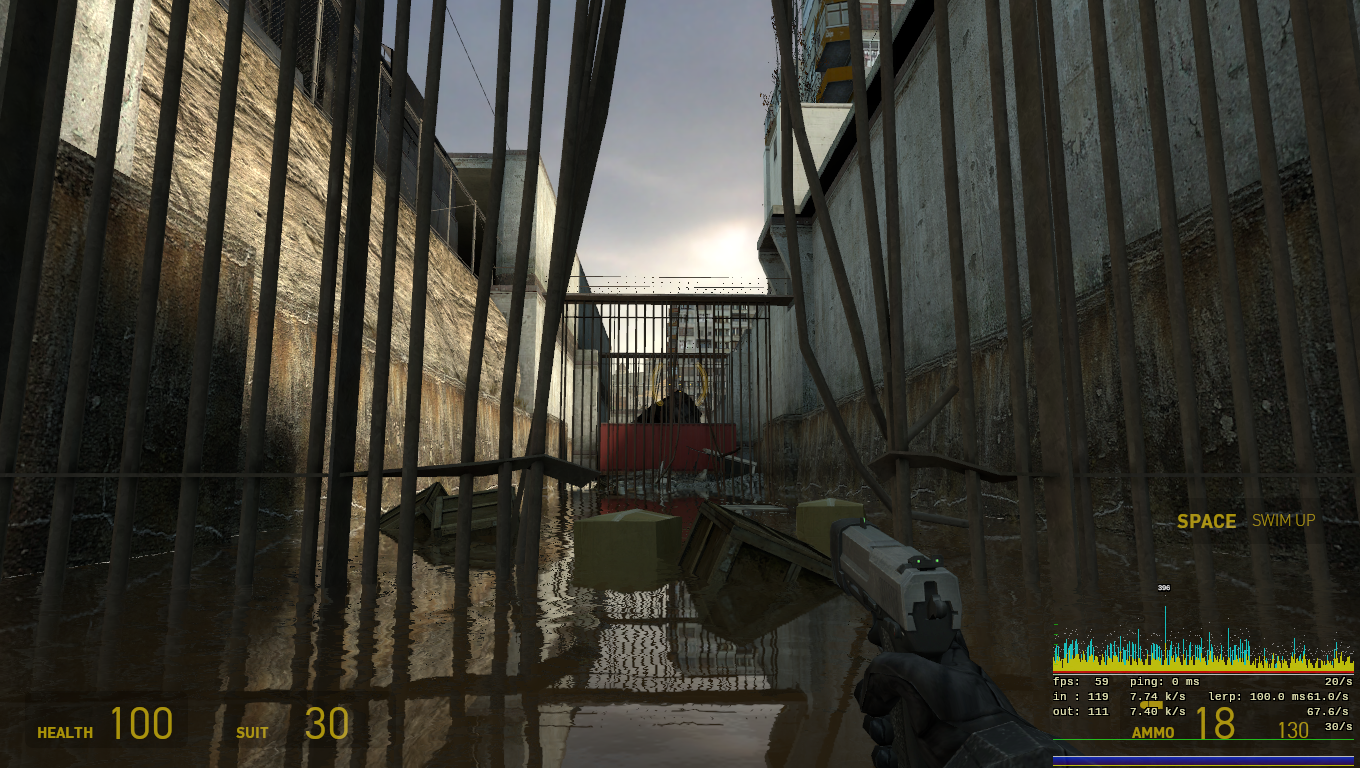
Playing through the entirety of Route Kanal up to fanboat section, I never noticed a drop. I had the settings on pretty moderately high, removing overkill stuff like antialiasing or motion blur. Love ya Half-Life 2.
Sniper Elite 3
Sniper Elite 3 is a game from 2014, and I remember playing this on the original Xbox One. I absolutely adore the Sniper Elite series, so this was a good game to try out and see what would happen.
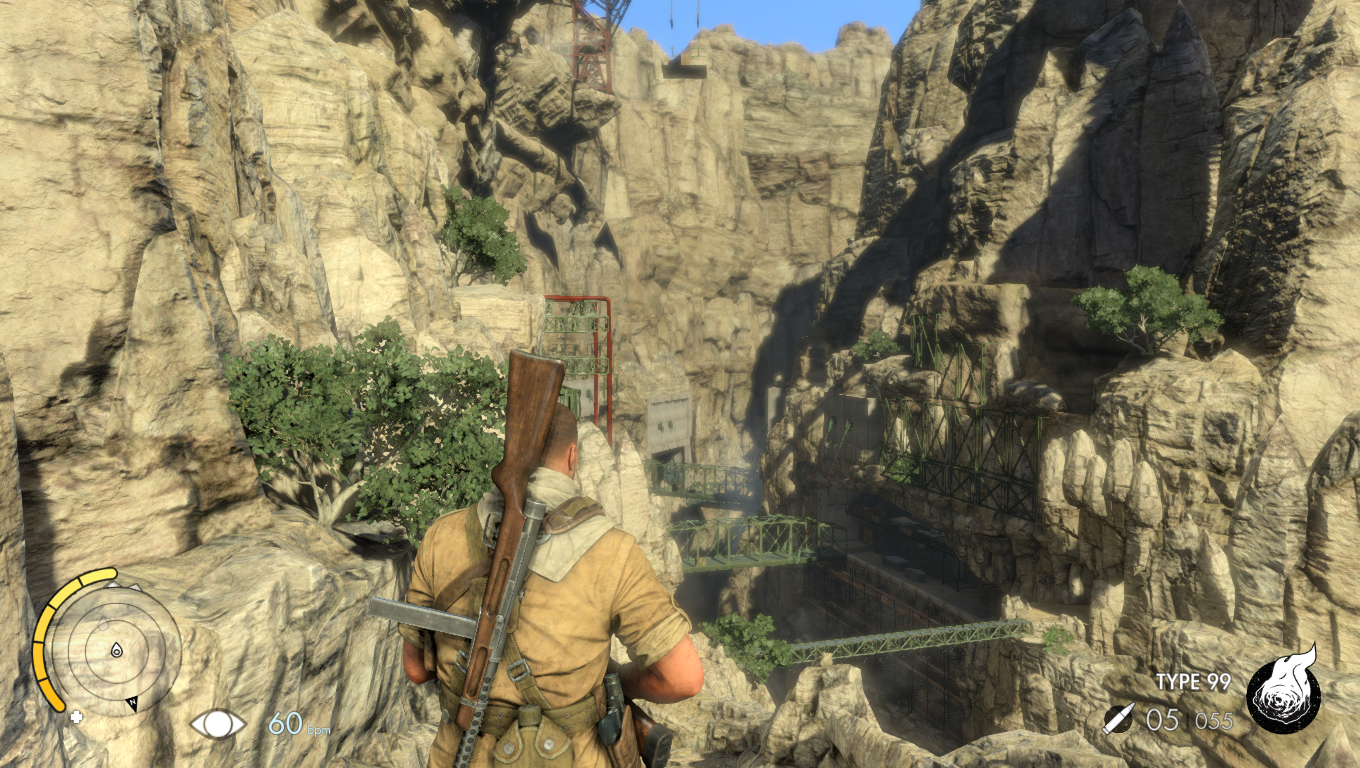
In some spots of the game, there's stutter. I tried booting up a random survival mode and had trouble maintaining framerate. In other parts, the game can reach a solid 60 FPS, but I imagine the levels are very large and cause some slight GPU stutter at times.
Dota 2
I haven't turned on Dota 2 in roughly six years. This game was pretty hellish on most PCs during it's early days of 2012, so what's Dota 2 like now, almost 13 years after it's initial beta phase?
I played a bot match in single player by myself. The game was surprisingly short. My bot Earthshaker crushed it and I just farmed. Per MangoHud, the game was hitting highs of 120 frames per second with lows of roughly 80. That, is honestly really damn good.
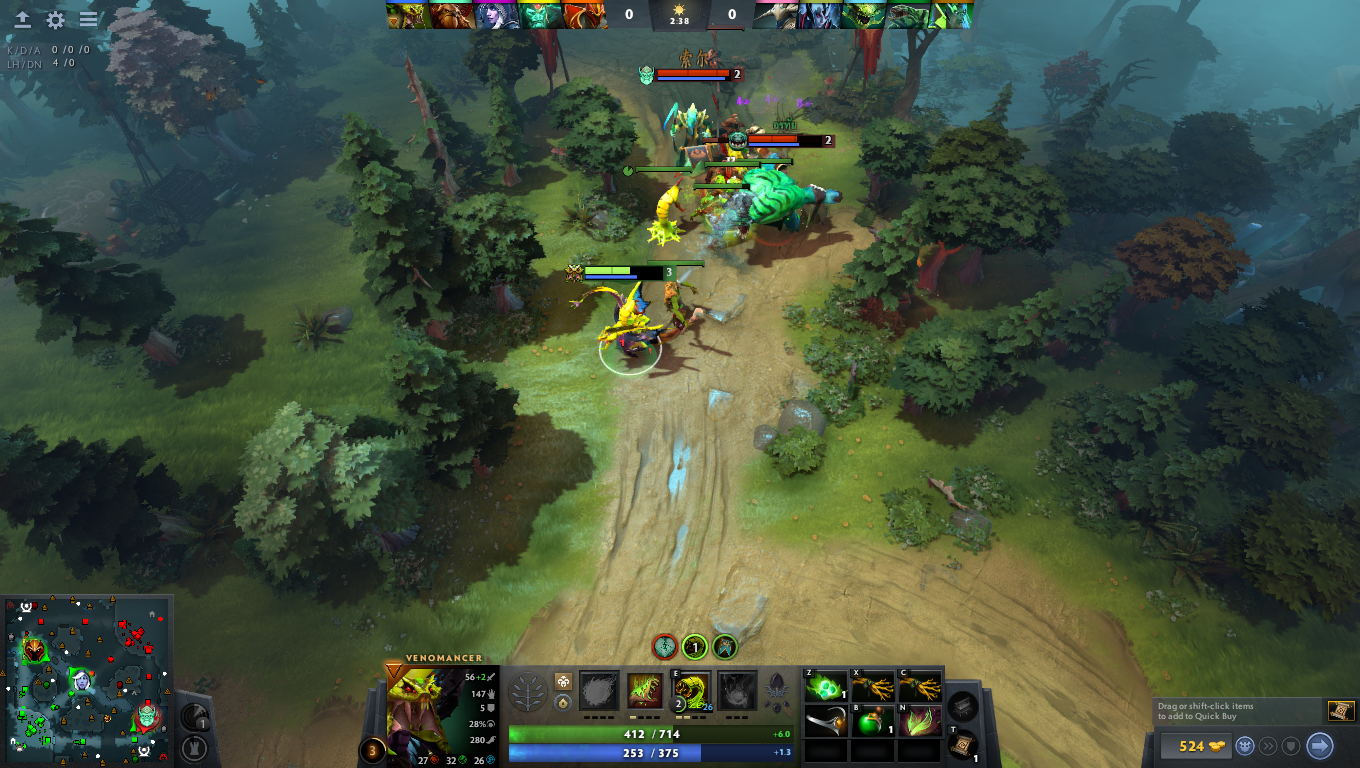
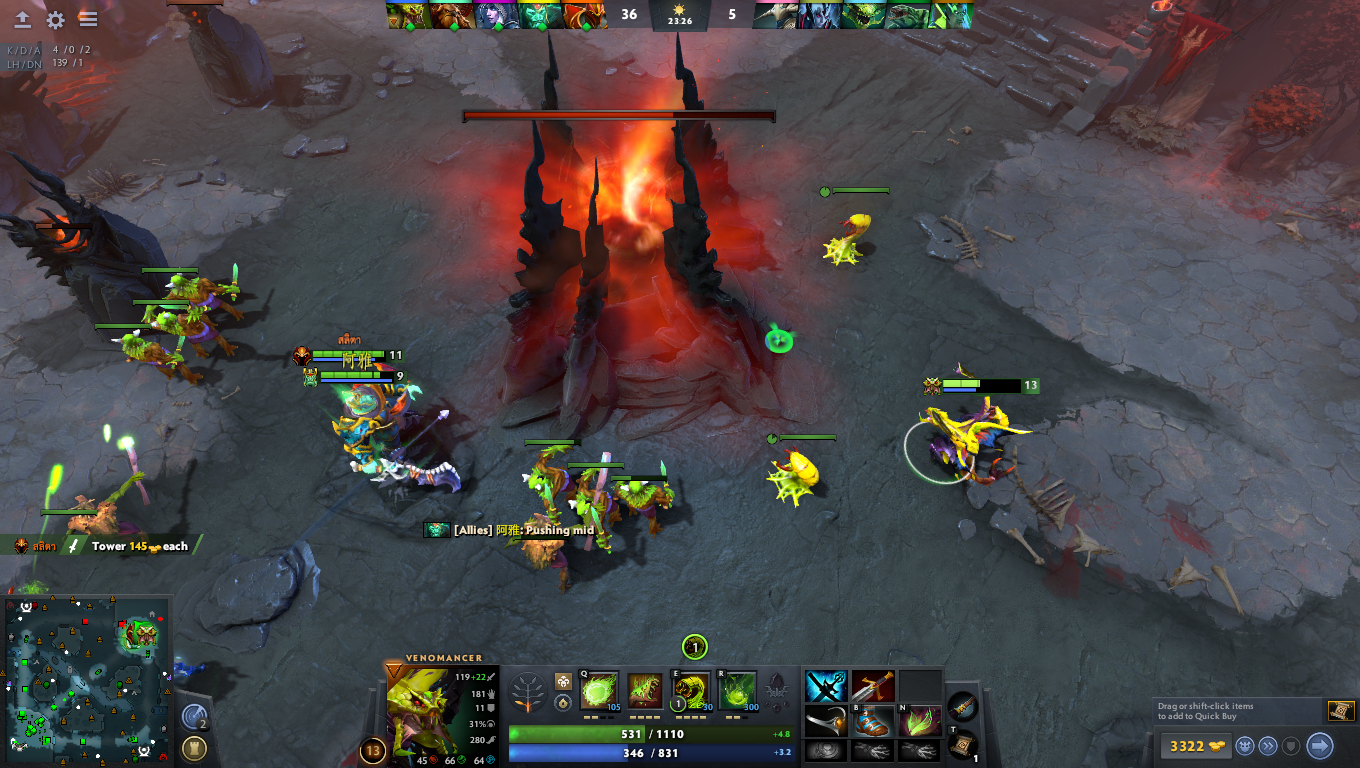
If I could test it in a higher resolution, I certainly would. I know Dota 2 isn't exactly the fanciest graphics game out there, but I know it as a performance hog, and seeing it play with these frame rates is something else to me.
Black Mesa
Why not play yet another version of Half-Life 1? Black Mesa is a faithful port of the original game to a more modern port of Source 1, re-building up the entire game from scratch and creating new models and assets for just about everything. It first appeared in 2015 and finished it's early access period in 2020.
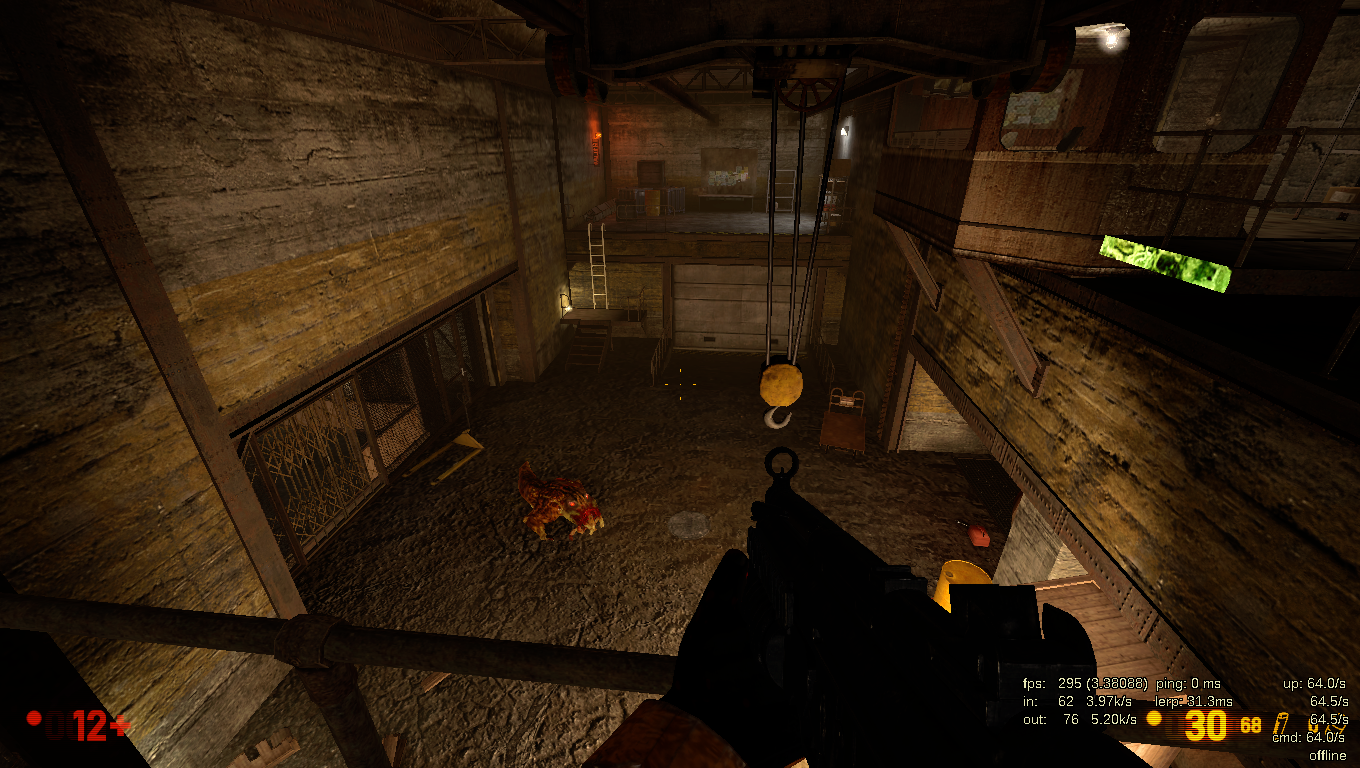
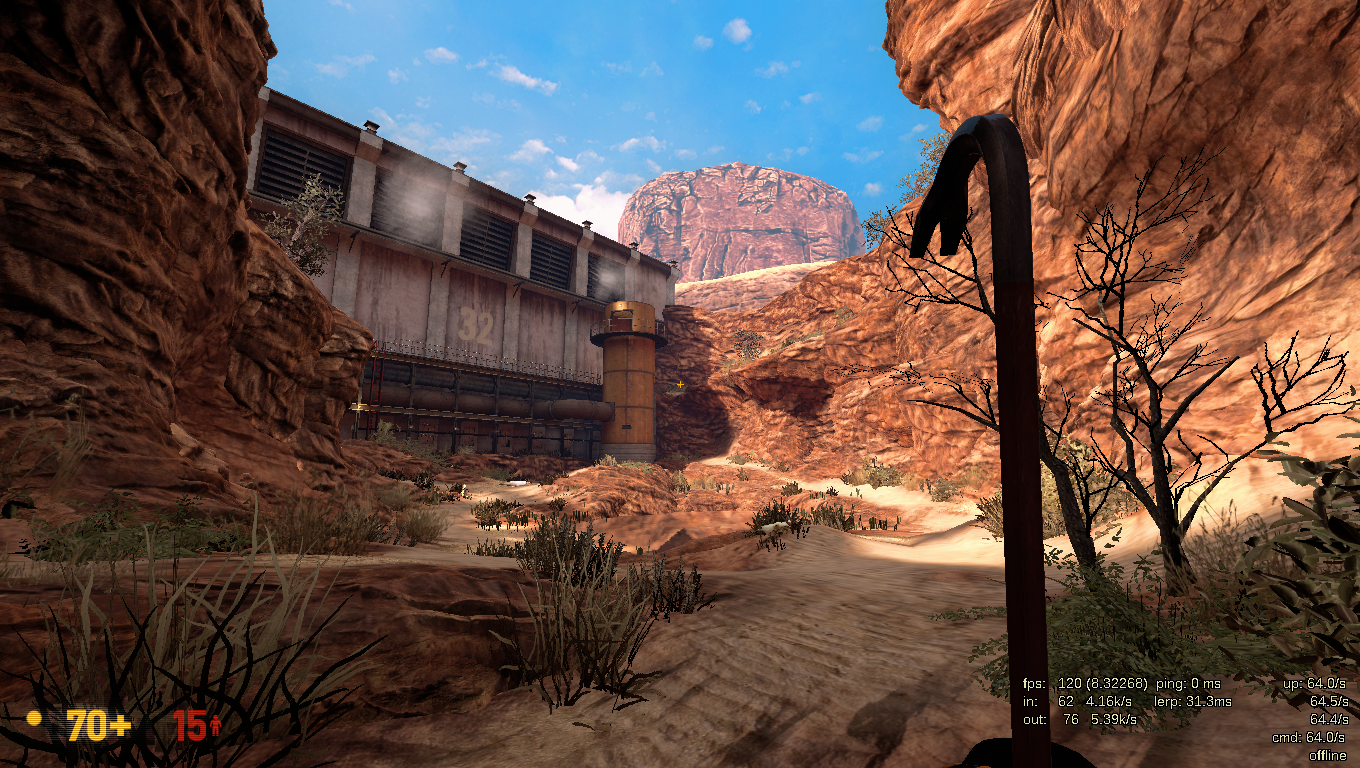
I don't want to say it's as buttery smooth as past Half-Life games, but I think this was a good push again to see if the hardware could keep up. Turning the frame cap off, in some places the game could hit 300 FPS, while in more open areas, it would hit maybe a rough 90-120 FPS. It would look so much better on 1080p.
Crysis
Couldn't get it to run. 😢
Update in 2026: I did not use the Crysis Remastered edition as I did not own it at the time. However, Crysis Remastered turns out to be very usable on Linux with Proton, even supporting HDR.
Witcher 3: Wild Hunt
Witcher 3 has always been something of a performance benchmark since it's release almost ten years ago. It's a chunky game weighing in at least well over 80GB of disk space, and I can feel the CPU churn as it pre-caches Vulkan shaders. And as I was somewhat expecting, the results were not that great here.
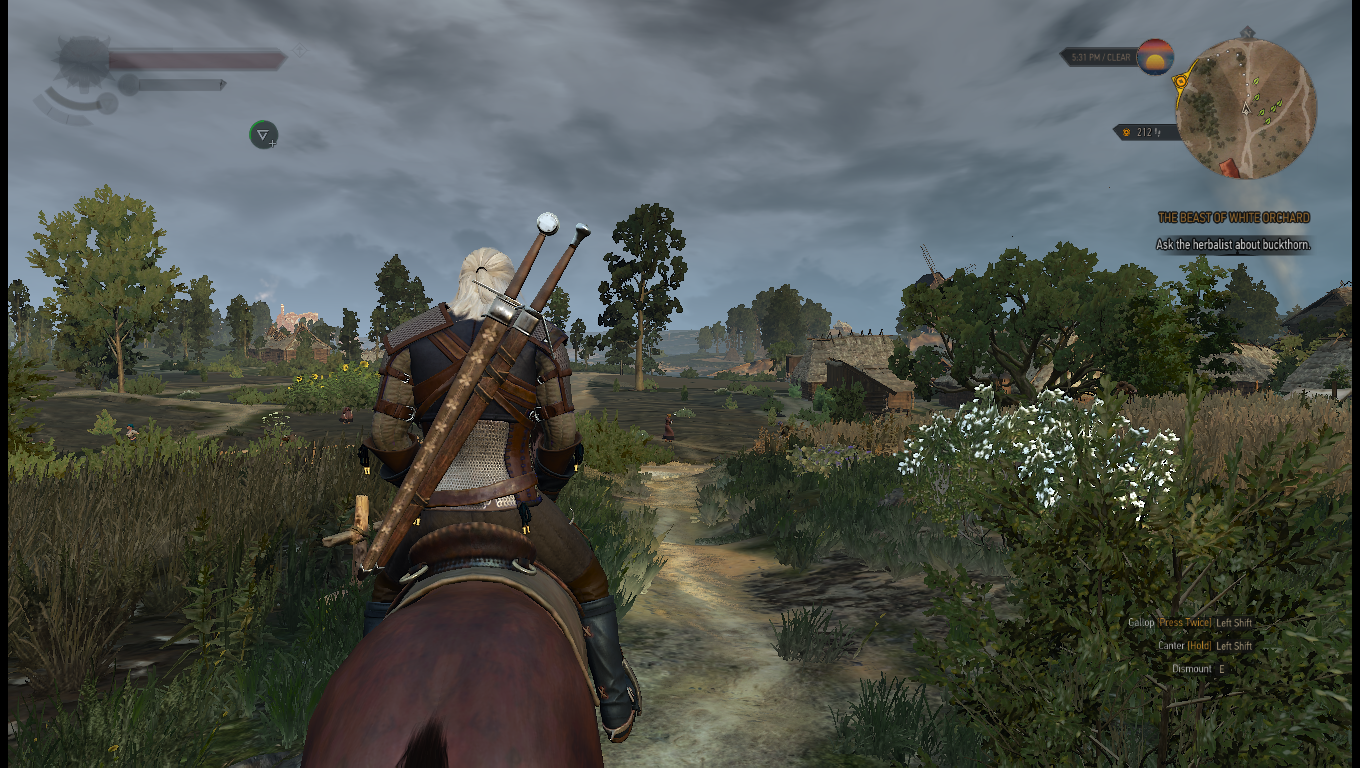
The game itself is an open world style RPG, and requires a ton of graphical calculations. It can hit a okay-ish 60 FPS range if you quite literally turn everything off, and if you do that, the game will honestly look worse than it's 2007 predecessor The Witcher.
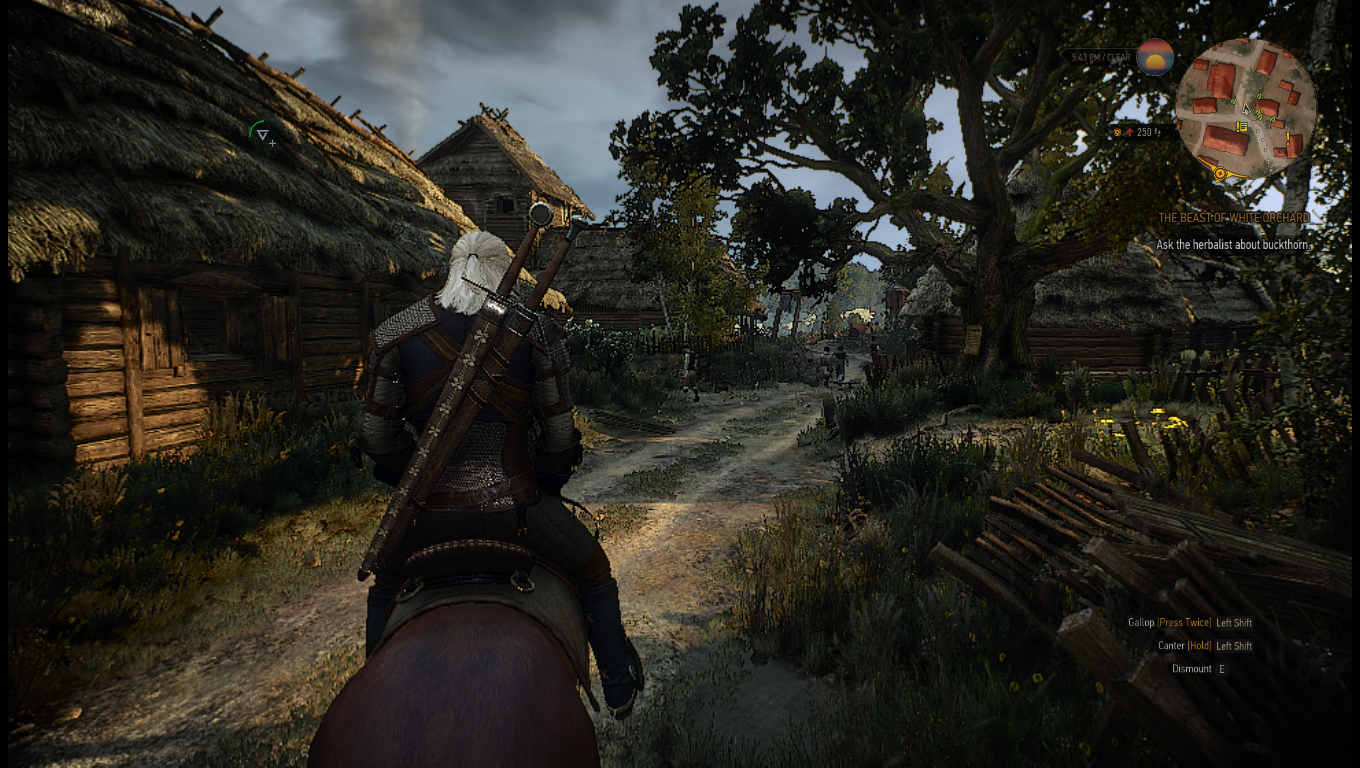
For science, I cranked up as many non-raytracing settings and let it rip. It looks... Okay... Not great, and my resolution makes it look terrible. Getting a stable 30-40 at high settings is not the worst for a CPU consuming as much power as it does.
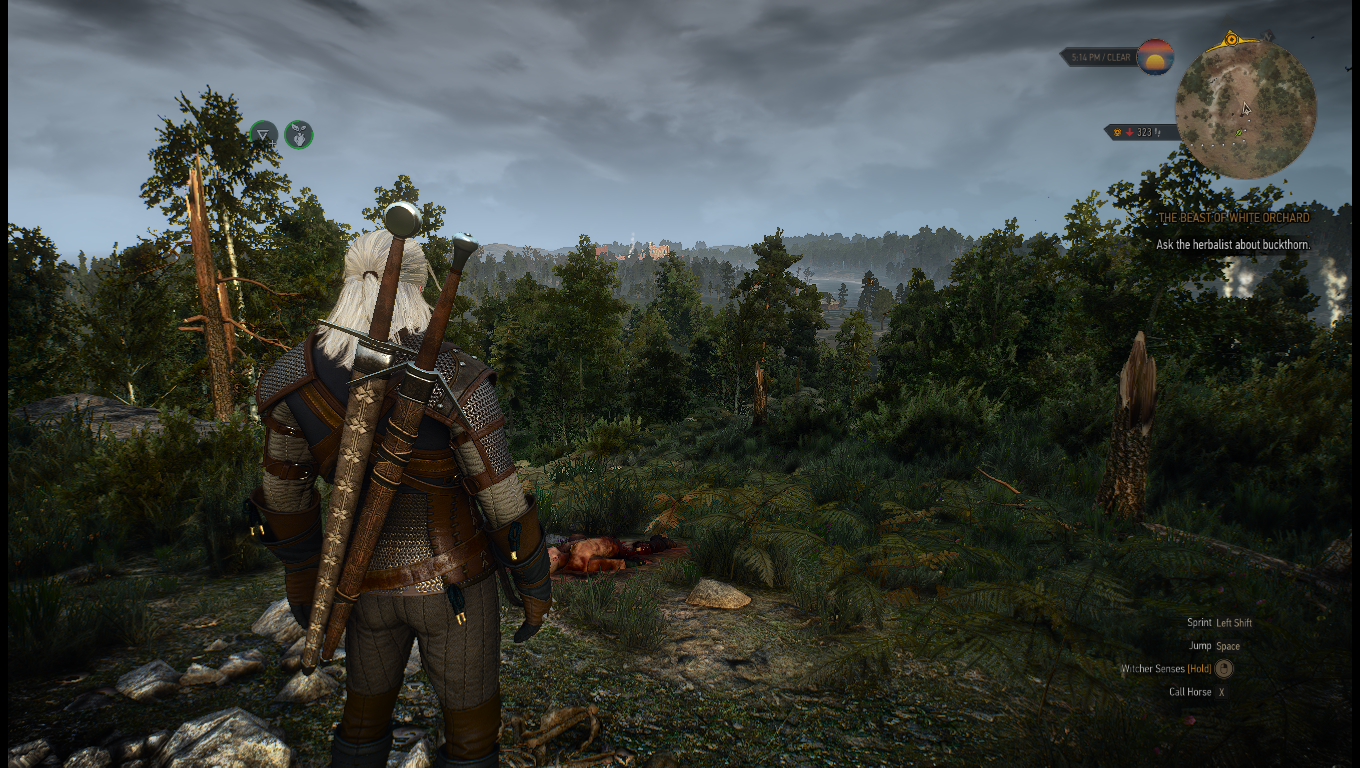
This is my stopping point. A CPU from 2024 playing a 2015 game seems to be the absolute upper-bound limit, and I think that's totally fair for something that only consumes 65 Watts of power, though I wish I had a power meter to actually see how much it uses during these high loads and see if it ever overdraws it's TDP.
Update in 2026: there is a new Witcher 3 Remastered Edition on Steam. No idea how well it will run on lower-end hardware at present.
File Sharing
Back to the story, it's pretty clear that this thing can really rip when it needs to. Video games are not doing the same tasks as basic file storage tasks, but I went into this wanting to make something that'll really stand the test of time. I don't want to upgrade this for at least five years, and if I ever have to, I'd like to re-purpose it later in life at least.
As far as file sharing purposes go, I've decided to settle on Samba. I don't know terribly much about Samba other than it's a file sharing process that was made for Windows fileshare and works across other platforms. I do have a wide array of systems, so the compatibility is nice.
There comes my next point of contention: do I wipe the server and start fresh and make it a GUI-less system? For the testing during this post I was using Linux Mint Desktop edition, and it worked fine with no real hiccups during all that gaming testing. Do I start over?
Based on my work space here, I opted not to. I have a small TV setup here next to my desk that I tend to use for old consoles that don't have HDMI support. This TV is the only thing that has RCA and composite inputs in my house, and it'd be a pain in the butt to find something that might still have those ports.
Right now, how my networked devices all sit, is roughly under my desk on a L-shaped desk setup that I have with my tables from IKEA. The TV sits a bit out of the way, and it is plugged into some consoles and wired into the data vault underneath. I think for now I'd like to keep this setup, because it's pretty fun to have a device that's high-powered and can do many different things. If I need to manage it, I can turn on the TV remotely and do some file work that way, or log in remotely through SSH and do it all via the terminal. It might be burning more CPU than it has to could without a desktop, but it's more about utility than total power saving right now.
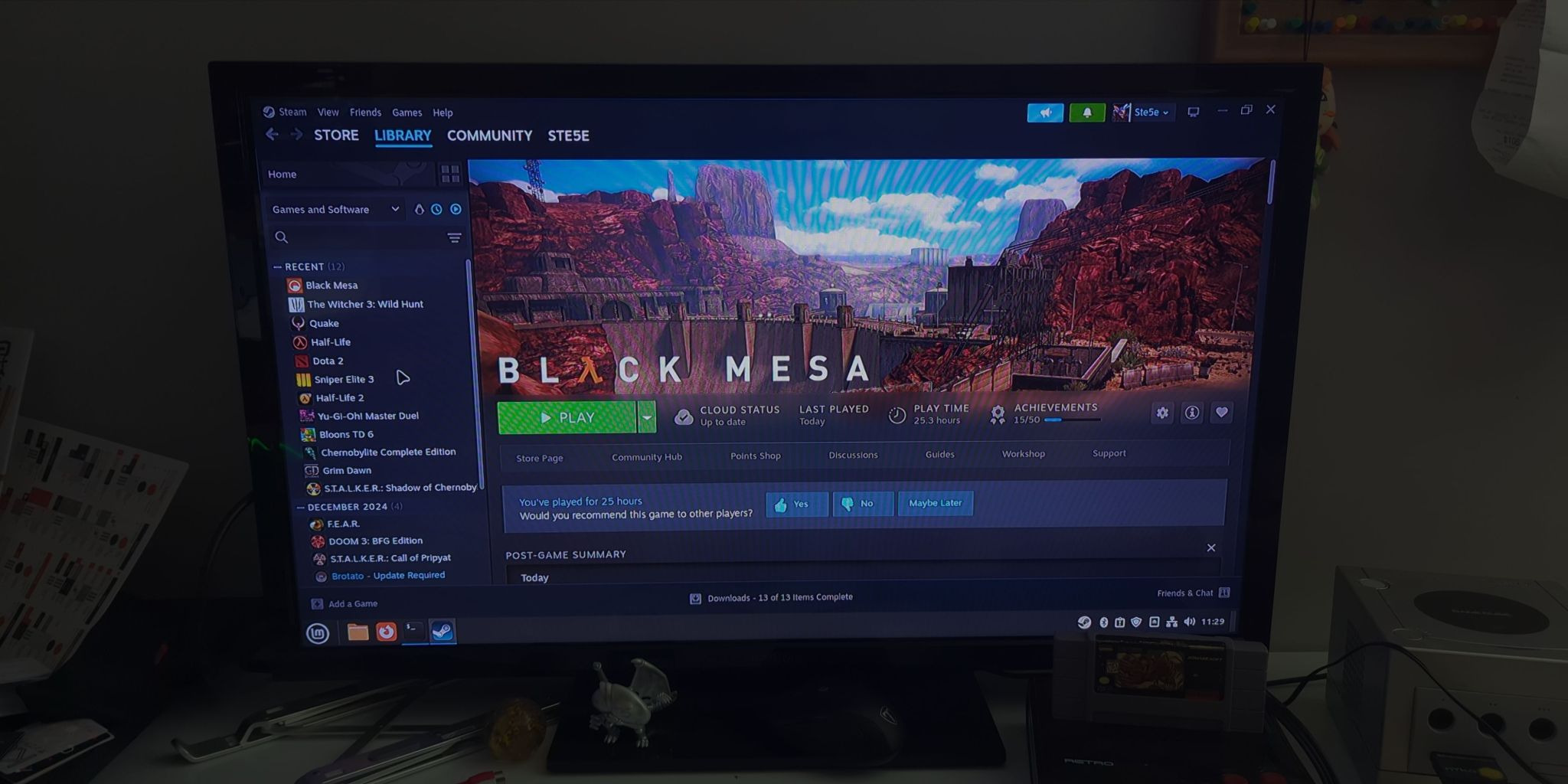
Also, if I really need to, I can simply disable the desktop auto service and simply login and create the virtual desktop each time I need to go in. It's not difficult.
The steps to install Samba are just installing samba and turning on the Samba service through systemctl . You will have to edit the root /etc/samba/smbd.conf file that's there, but right now since my drives are currently not unified, I have two folders with one on each drive. I have yet to really figure out if I want to try to set up an LVM or not to treat them both as a unified virtual disk. In concept it might work; in practice it might be annoying. Not sure yet.
Edit your smb.conf file with root permissions and add a section for your shared folder at the bottom.
# /etc/samba/smb.conf
[YourFolderName]
path = /home/your/folder/path
browseable = yes
read only = no
guest ok = yes
Once that's done. Enable and restart the smbd server.
$ systemctl enable smbd.service
$ systemctl restart smbd.service
Once the service is running and your folders are mounted properly through Samba, you should be able to point a file browser at the URI like smb://yourhostname and you should immediately see all folders you mounted. For Windows you need to do something like \\yourhostname, because of course Windows has to be unique. However, you need user permissions to read and write files, so you need to adjust Samba permissions on the server.
$ smbpasswd -a localusername
You can make one global user and have a bunch of computers all use that, or have individual users all with their own passwords to access the drive. For ease, one user is probably fine. There's definitely a way to do completely anonymous access with no login or password, but... I don't think that's a great idea.
Testing
The only way to see if it works is to throw a ton of data at the dang thing. I have a bunch of Linux ISOs in my downloads folder, so I threw them all at it and it went perfectly fine. The Gnome file browser showed about a 90.2 MB/s file speed when transferring a Bazzite Linux over the wire. Not bad. I tried using dd to copy a file from one disk over to the Samba server, and it was way slower, and I'm sure it's a matter of the Samba protocols that dd isn't exactly contextually aware of. It copies at about a speed of 1.8 MB/s. I'm better off using scp at that point.
For reads, I threw some of the digital copies of movies I had and tried streaming them from the file explorer. Again, boring result, but it works perfectly fine. Probably only uses up a few megabytes of bandwidth, which is not very difficult to handle given the hardware.
Overall, I've thrown gigabytes of data at the thing, and it works without any real hitch. It's been super easy to share data across computers on my network now.
Backups
Backups are something I'm generally terrible at. I've always been something of an external hard drive backup guy, and I've already done it a number of times in the last year transferring data off old hard drives into externals. A backup system would be automatic and provide some kind of ability to easily roll back into a previous system state, a la Windows System Restore. However, I'm not really looking for a System Restore clone, more I'm looking for some setup that can help me better secure my files in the long term.
The one problem I see is that if and when my power inevitably goes down due to a storm, I predict that there could be some theoretical data loss or unexpected shutdown to occur. If every device I have is running and all connected and powered, then the loss could potentially impact all devices connected via power, say external USB hard drives.
I don't know if I have the best way to counteract that, other than using off-site backups, which, coming full circle here, can cost money. It's always a good practice to have two copies of everything you have digitally as a backup strategy, and probably even better if they are in two different locations entirely. But as far as saving money is concerned, perhaps there's an alternative.
Let's say I have two hard drives A and B. Hard drive A is plugged in via USB and creates backup jobs automatically once a week or so. Using a basic rsync command would copy anything you want over to hard drive A and can calculate a difference list just as well. If this drive was left plugged in 24/7, it would be subject to the same power loss damage the system could occur if say an electrical surge hit everything on a circuit.
Hard drive B's job would be that of an unconnected device, one that I would have to manually apply an update for by plugging it in and running the rsync operation. Then once that's done, unplug it and leave it somewhere for safe keeping, or just keep it on top of the server box. By being disconnected from the electrical circuit, it would be a degree safer than the always-connected hard drive, with the only disaster scenario being that of a total EMP blowing everything out completely. Or a house fire.
I don't think manual backup strategies are always ideal, but if it's to protect your family's lifetime photos and videos, maybe it's worth doing once or twice a month. Who knows.
Steam Streaming
One benefit of having Steam on the server is that it can technically be used as a proxy video game device for a different computer on the network. Granted, my living room already has a gaming box, so there'd be no need for that to exist. The data vault is technically weaker in the hardware category than all my main devices, Steam Deck included, but it could technically be a means to off-load work or save on storage. Maybe one of my computers is running out of storage and it's not worth the time or effort to reinstall big or small games, so network streaming might be a small advantage.
To test this, I wanted to try both a wired and wireless test. I picked, again, Half-Life 1 since it's the smallest 3D game I know of.
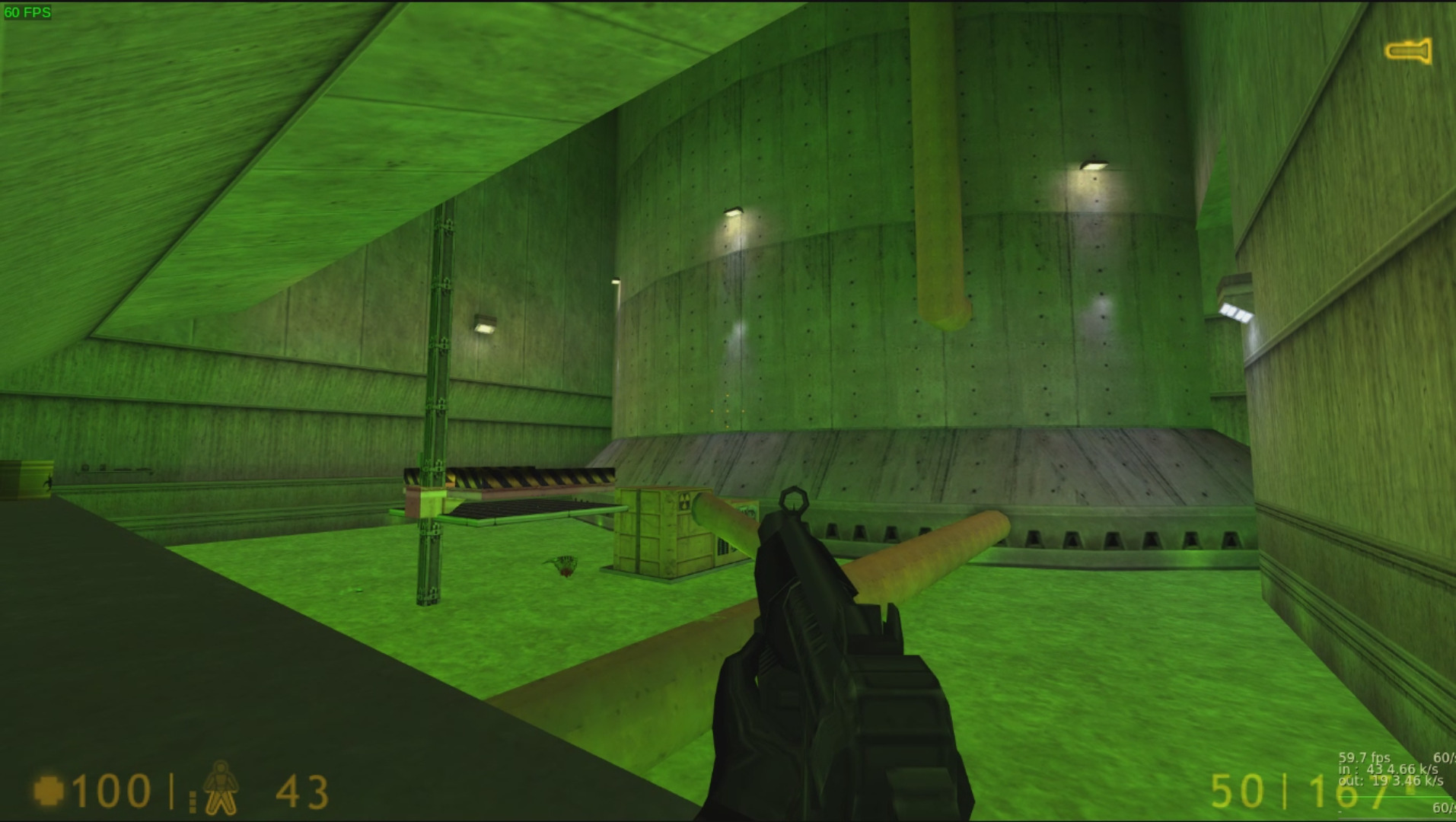
The first test was on LAN, hard wired in, streamed the game through the intro of Blast Pit. There is not much network hopping here, it is as fast as the video encoder can be on the server, and it's not a slouch. It plays pretty okay, lag not noticeable. I cranked it up to 1920x1080, no notable downgrade. The colors felt a little washed, but I expect that's due to stream encoding quality.
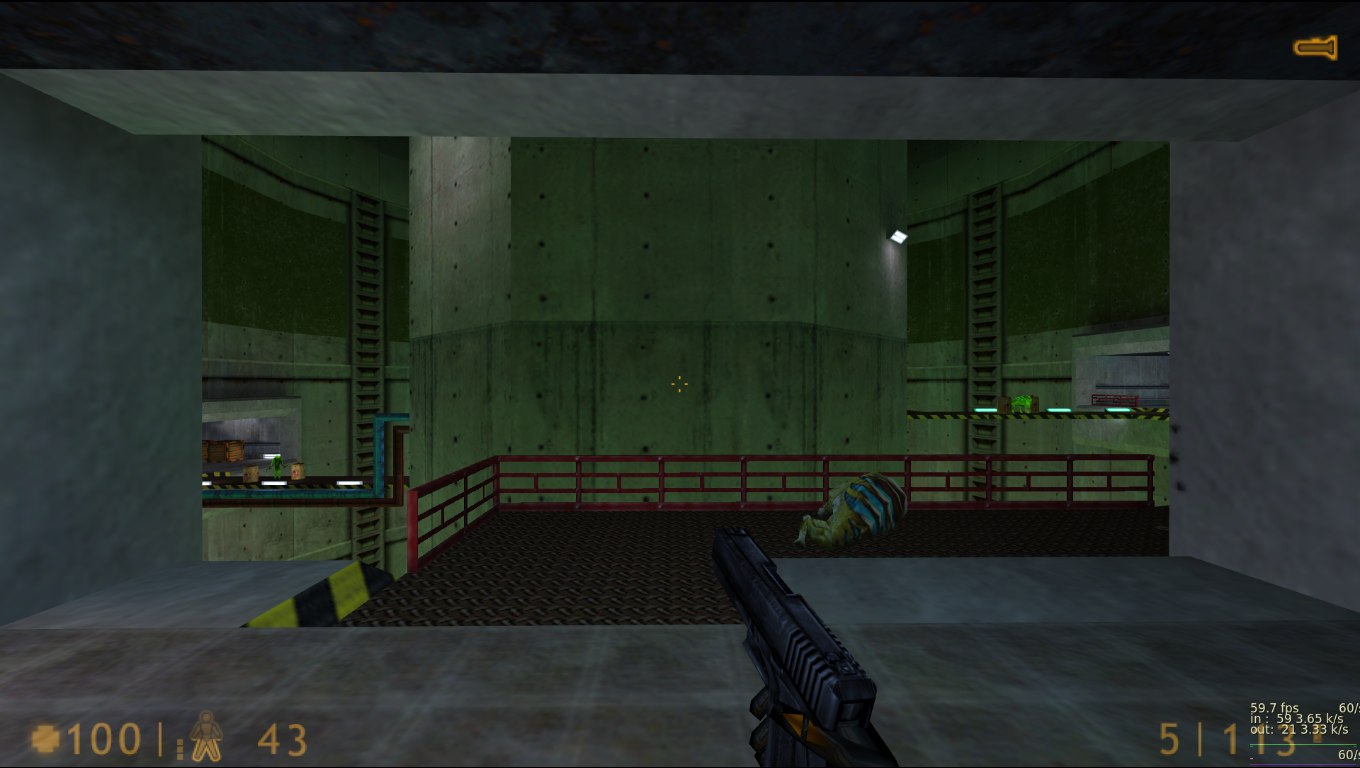
The next one is done with Steam Deck wirelessly, and aside from my terrible Steam Deck controls for the classic game, it ran... Fine. The only limitation here felt like how fast it would wirelessly transmit data from the router to the device. If your wireless network is healthy and fast, it's fine. The Steam Deck only has a resolution of 1200x800, and the resolution of the server was scaled down to meet it.
It's hard to capture a screen resolution from the Deck. Since it's being streamed over Steam, the screenshot function on the Deck was bound to the server, not the Deck, so I couldn't capture a picture on the Deck. I would have to go to Desktop mode and apply a desktop screenshot, and I sort of didn't try that hard.
Overall, it's not a terrible thing to keep some games on. If there's a particular game that doesn't support cloud sharing on Steam, but you want to play it from multiple devices, this isn't a bad way to go. Nice little benefit of the APU.
Other Considerations
I'm not a data hoarder pro, and I can't say I know all the ins and outs. I think I know enough to get me started, that's just about it. I've been using Linux computers for years and proper data hoarding has never really been my hobby.
There's other things to take into account here that I may as well list out.
- TrueNAS is a common OS I've seen out there that is popular among many data hoarders. It's built on top of FreeBSD, but I can't say I've ever touched a BSD platform in my life. It might be a bit of an adjustment.
- OpenZFS (or ZFS) is largely the most popular drive partition type I've ever seen, but I'm not certain how stable it is still on Linux due to how long it took to get ZFS into the main kernel. It's very preferrable over things like btrfs or ext4, but I'll have to do more reading to figure it out.
- I'm seeing HexOS as a recommendation for an all-in-one home server, but it looks to be closed source and behind a massive $199 USD license fee. That might be worth it for some people, but I'd rather stick to open systems personally...
Closing Thoughts
I wanted to get this done before the end of last year, but it just took so much effort to get it all done. What should have been a few days has just been a backburner two-month project to get going. Coupled with re-wiring my network stack and cutting ethernet cables, I learned a lot and got things organized much nicer.
The cost of everything combined was pricier than I would have liked, but again, my intention is to make this thing last for as long as possible with as much software and hardware support for as long as possible. I wanted it to be low power consumption and also power efficient to save on power bills where possible. I have an adequate amount of storage for the time being, and will upgrade as we go along.
The one concern I think I have in all this is the rate of solid state drive failure. Some may read this and ask what my fail case is for that scenario, and right now? I don't have one. I have never had a hard drive or an SSD completely fail on me. Based on Backblaze's solid disk and hard drive reporting from being a crazy cloud storage provider, solid state drives are pretty safe overall, and have a lower failure rate than mechanical. Now I know that all SSDs are destined to die, the question is really a matter of when.
I like to estimate that my SSDs may last longer than that of hard core data centers mostly for the reason that my disks are not exactly going to be under full R/W load all the time. It's a networked storage solution that I don't think I could find a way to even put it under load all the time right now. It should hold our media and files safely, and just simply pray for the best. I have thought about RAID setups, but right now I only have two disks, and the redundancy between two disks probably isn't super beneficial. Would need a third disk I think before RAID works well (ie. RAID 5).
Thanks for reading, hopefully I've inspired you to build your own data box of your own.